If you’re receiving an error message saying your Two-Factor Authentication (2FA) code is incorrect, follow these steps to resolve the issue:
Why a 2FA Code May Be Incorrect and How to Fix It
Two-Factor Authentication (2FA) adds an extra layer of security to your account. If a 2FA code is not recognised, the system will block access until a valid code is entered. This guide explains why this happens and how to resolve it.
What Happens When a 2FA Code Is Incorrect
Login access is blocked and you cannot proceed.
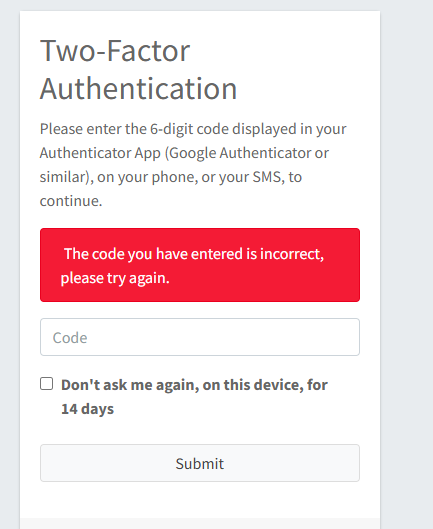
An error message appears, such as:
“The code you have entered is incorrect, please try again.”You must enter a new, valid 6-digit code to continue.
This behaviour is intentional and designed to protect your account.
Common Reasons a 2FA Code Is Rejected
The code expired before it was entered (codes refresh every ~30 seconds).
An older SMS code was entered instead of the most recent one.
The code was taken from the wrong authenticator app or account.
The device’s date and time are out of sync, causing codes to be invalid.
Browser cache or cookies are interfering with the login process.
How to Troubleshoot and Fix the Issue
✅ Step 1: Double-Check the Code
Enter the exact 6-digit code shown in your authenticator app (e.g. Google Authenticator, Microsoft Authenticator) or received via SMS.
Ensure there are no spaces or extra characters.
If using SMS, always use the latest code received.
✅ Step 2: Check Your Device Time Settings
2FA codes are time-sensitive and rely on your device clock being accurate.
Make sure your phone or device is set to automatic time sync:
Android:
Settings → Date & Time → Enable Use network-provided timeiOS:
Settings → General → Date & Time → Enable Set Automatically
✅ Step 3: Wait for a New Code
If the code isn’t accepted:
Wait for the next code cycle (usually 30 seconds).
Enter the newly generated code immediately.
✅ Step 4: Clear Cache or Try a Different Browser/Device
Sometimes browser data can interfere with 2FA.
Try the following:
Refresh the login page.
Clear your browser cache and cookies.
Use an incognito/private window.
Try logging in using a different browser or device.
Why this helps:
Browsers store temporary data (cache) to speed up websites. If this data becomes outdated or corrupted, it can cause login issues. Clearing the cache forces the browser to load a fresh version of the site and often resolves 2FA errors.
How to Clear Your Browser Cache
Clearing your browser cache can resolve login issues, including problems with Two-Factor Authentication (2FA). Follow the steps below for your browser.
Google Chrome
Open Chrome.
Click the three dots (⋮) in the top-right corner.
Select Settings.
Click Privacy and security.
Select Clear browsing data.
Set Time range to All time.
Tick Cached images and files
(You may also tick Cookies and other site data if the issue persists.)Click Clear data.
Close and reopen Chrome, then try logging in again.
Microsoft Edge
Open Edge.
Click the three dots (⋮) in the top-right corner.
Select Settings.
Click Privacy, search, and services.
Under Clear browsing data, click Choose what to clear.
Set Time range to All time.
Tick Cached images and files.
Click Clear now.
Restart the browser and try again.
Mozilla Firefox
Open Firefox.
Click the three lines (☰) in the top-right corner.
Select Settings.
Click Privacy & Security.
Scroll to Cookies and Site Data.
Click Clear Data.
Tick Cached Web Content.
Click Clear.
Close and reopen Firefox before retrying.
Safari (Mac)
Open Safari.
Click Safari in the top menu bar.
Select Settings (or Preferences).
Go to the Privacy tab.
Click Manage Website Data.
Click Remove All.
Confirm and restart Safari.
Mobile Browsers (Quick Tip)
If using a mobile browser:
Open browser Settings
Look for Privacy, History, or Browsing Data
Select Clear cache (not just history)
Restart the browser
Alternative Option: Use Incognito / Private Mode
If you’re unable to clear cache:
Open an Incognito (Chrome/Edge) or Private Window (Firefox/Safari)
Try logging in from there
This bypasses stored cache and cookies.
Why Clearing Cache Helps
Removes outdated or corrupted website data
Forces the browser to load the latest version of the site
Often resolves login and 2FA issues
Still Having Trouble?
If none of the steps above resolve the issue, please contact our Support Team. In some cases, 2FA may need to be reset by an administrator.
Important to Know
Access will always be denied until a valid 2FA code is entered.
This is a security feature designed to protect your account and data.
Was this article helpful?
That’s Great!
Thank you for your feedback
Sorry! We couldn't be helpful
Thank you for your feedback
Feedback sent
We appreciate your effort and will try to fix the article